Animations
F3D can play animations from files that contain them. Play animations either interactively, by selecting a specific time to display, or by selecting which animations to play. When a file contains multiple animations, either play each animation separately or select multiple animations to play at the same time.
Demonstration
This specific example uses the InterpolationTest.glb animation file.
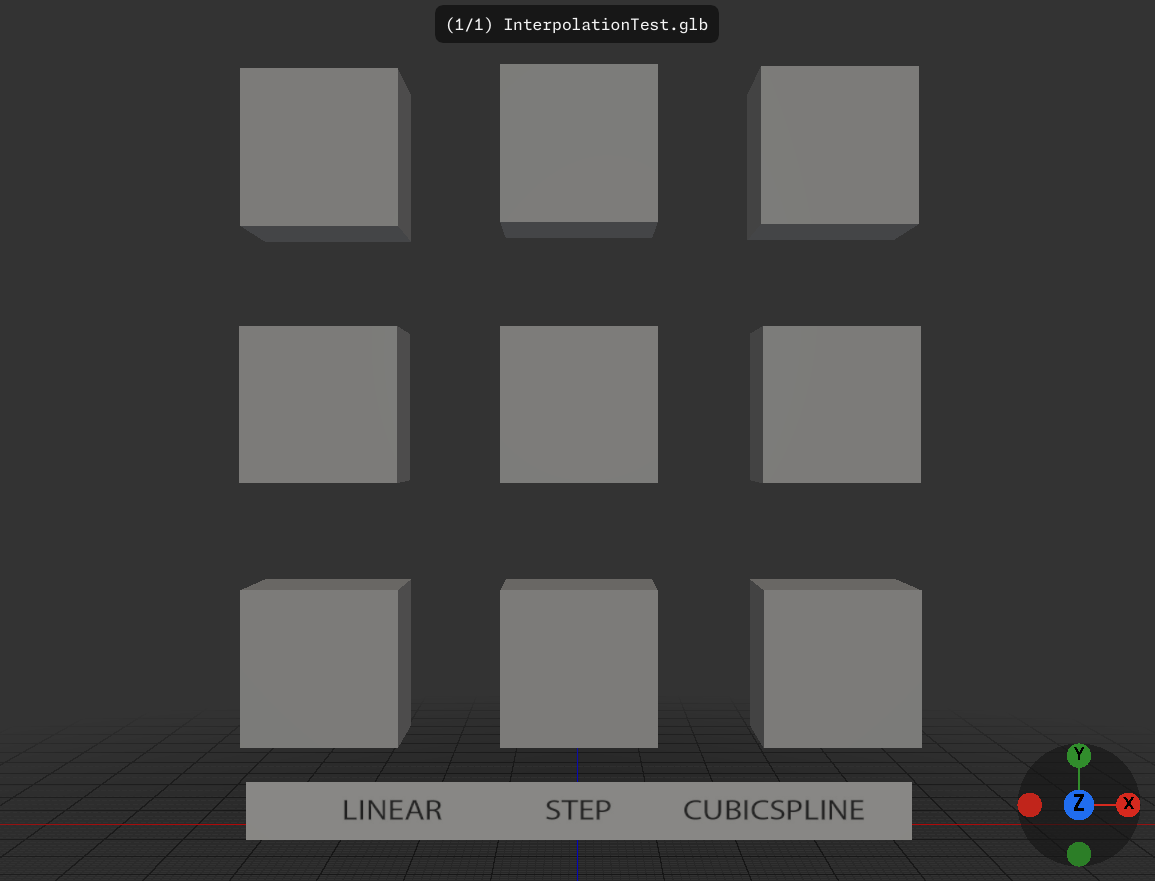
Load the example animation file from the command-line: f3d InterpolationTest.glb
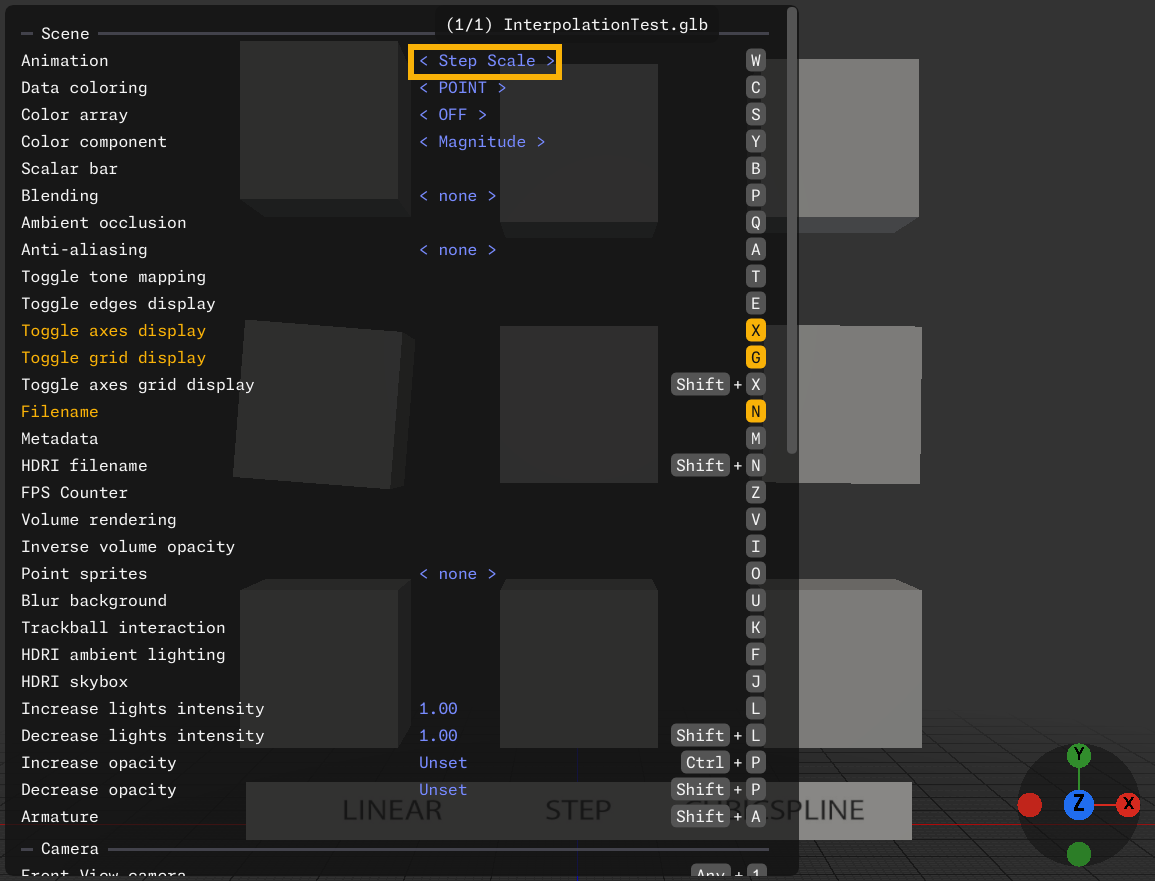 To view the current animation name, press F1 to open the Cheatsheet.
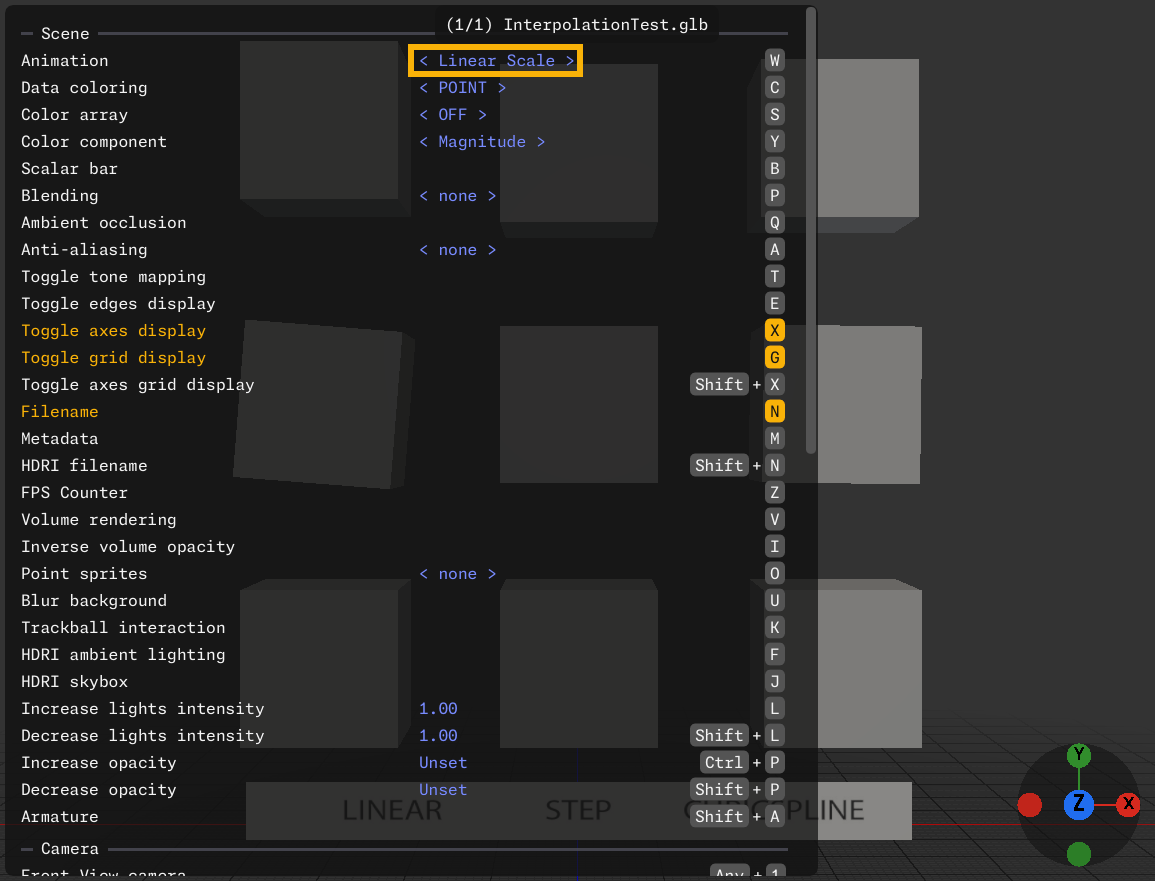 Press W to cycle through available animations.
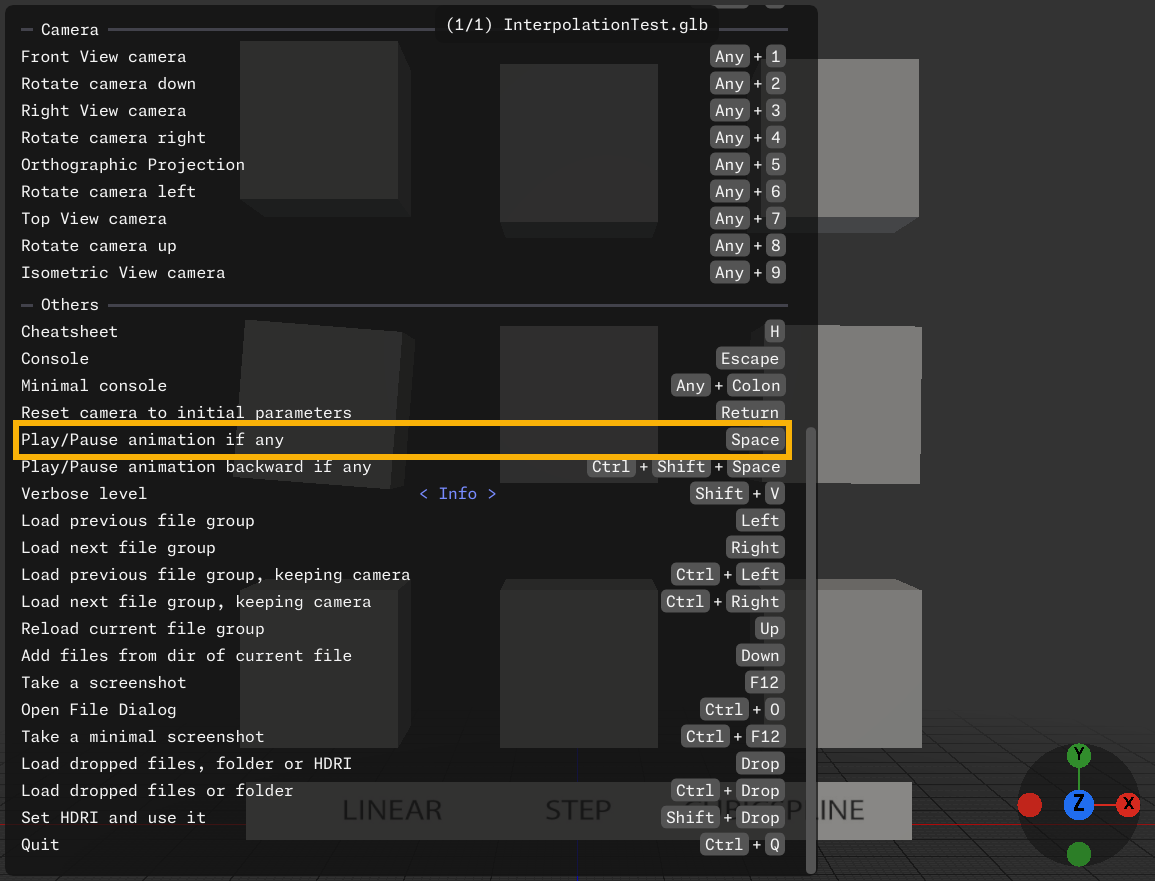 Press Space to play or pause the current animation.
A blue bar runs along the bottom of screen to indicate the current time interval of the animation sequence if --animation-progress is set to default or advanced. The advanced mode additionally shows the time range, animation name and current time, and marks each key frame with a vertical line on the bar; both modes let you click or drag the bar to jump to a given time. While hovering the advanced bar near a key frame marker, the tooltip reports that key frame's time.
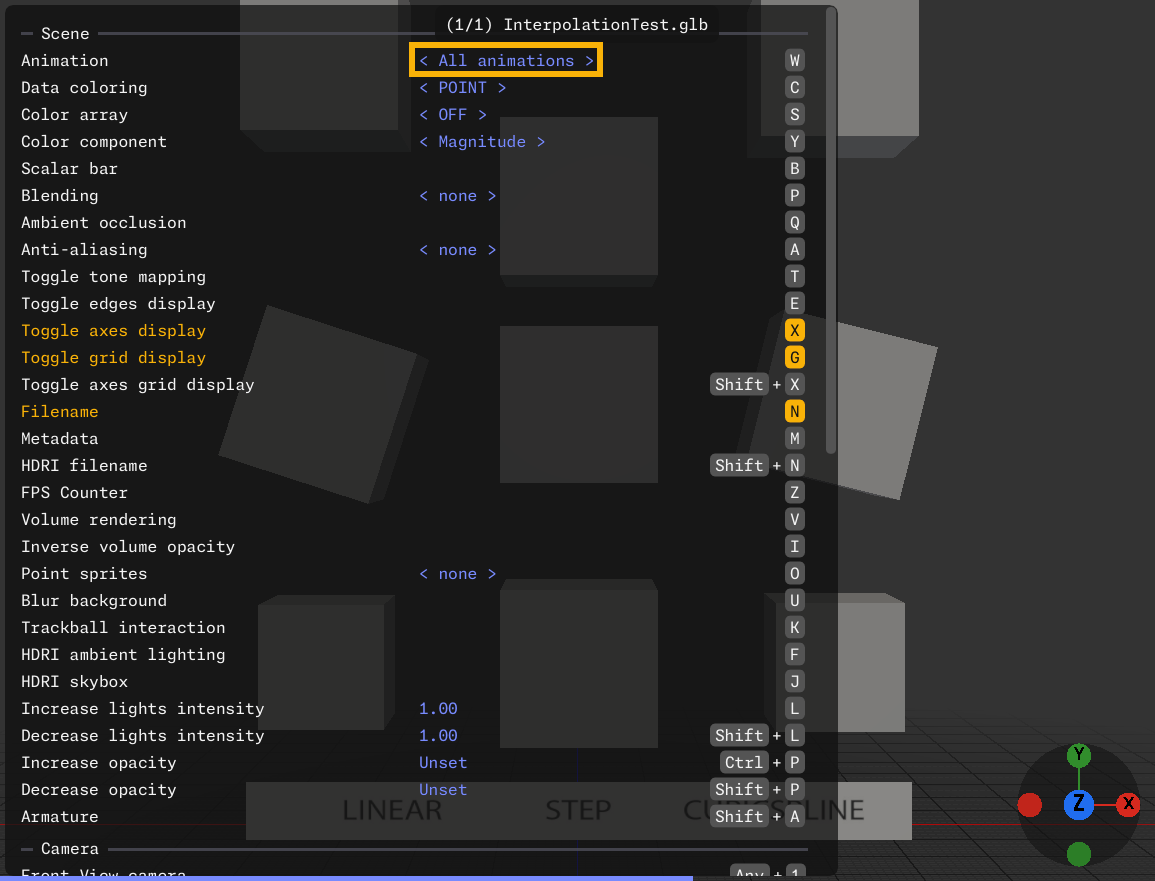 "All animations" plays all animations at the same time when the file format supports it.
Command-line options
Control F3D animation behavior from the command-line with these options.
| Options | Default | Description |
|---|---|---|
| --animation-indices | Select the animations to play. | |
| --animation-indices=-1 | Play all animations at once (only if supported) | |
| --animation-speed-factor | Time Unit = Seconds | Adjust time unit. |
| --frame-rate | 60 FPS | Adjust animation (and others components) frame rate. |
| --animation-time | Load a specific time value on start. |
Export animation frames
Images sequence
F3D can export multiple frames from an animation to image files. Include {frame} in the output filename template:
f3d example.file --output=frame_{frame:04}.png
This saves frames as frame_0000.png, frame_0001.png, etc.
Set the number of frames with --frame-rate:
f3d example.file --output=frame_{frame}.png --frame-rate=30
Use --animation-time to start exporting from a specific time instead of the beginning:
f3d example.file --output=frame_{frame}.png --frame-rate=10 --animation-time=1.5
See Filename templating for more template variables.
Video
F3D can save the animation to a video raw x264 stream:
f3d example.file --output-video=video.h264
The raw video file can be added to a container using FFmpeg:
ffmpeg -f h264 -i video.h264 video.mp4
It can be done more efficiently in one line using piping:
f3d example.file --output-video=- | ffmpeg -f h264 -i - video.mp4
Animation interactions
- Press W to cycle through animations.
- Press Space to play or pause animation.
- Press Ctrl+Shift+Space to play or pause animation backward.
See the commands reference for commands like jump_to_frame, jump_to_key_frame and jump_to_time.
Cycle animations
Press W to cycle the animation to show.
When cycling, F3D uses this order:
- Multiple animations or all animations
- Animation index 0
- Animation index 1
- ...
- Animation index N
- All animations (if multiple animations supported and more than one animation is available)
- No animations
If you selected multiple animation indices, F3D does not cycle back to that selection. F3D cycles all animations only when the currently loaded files support it.
Time units
F3D assumes animation time uses seconds.
Coloring range
When coloring while loading a time value or playing the animation, F3D automatically expands the coloring range from previously loaded time values.
This includes --animation-time, which first loads the initial time before loading the provided time value.
Animation support level
The supported file formats page lists the animation support level for each reader.
- NONE: Animation is not supported, either by the file format or the implementation.
- UNIQUE: The file format or the F3D implementation supports at most one animation, whatever file is loaded.
- SINGLE: Multiple animations can exist, but F3D selects only one at a time.
- MULTI: F3D can select multiple animations at a time.
When opening multiple files at the same time using the --multi-file-mode option and selecting multiple animations to show,
F3D may warn when combining SINGLE and non SINGLE files, but it still tries to respect the chosen animation indices.
Animation key frames
Use the jump_to_key_frame command to load an animation at a specific key frame. See the commands reference for more information and examples on how to use this command.
This command is currently supported only by the following readers:
vtkF3DGLTFImportervtkF3DQuakeMDLImporter
Follow the issue below to track the progress of animation support for other readers: F3D Issue – Improve Animation System #2637